Track production orders in Appdor
Use a production-order table to review what is planned, what is running and what is on hold. This walkthrough uses the actual Appdor interface with sample data in the ERP — Manufacturing app.
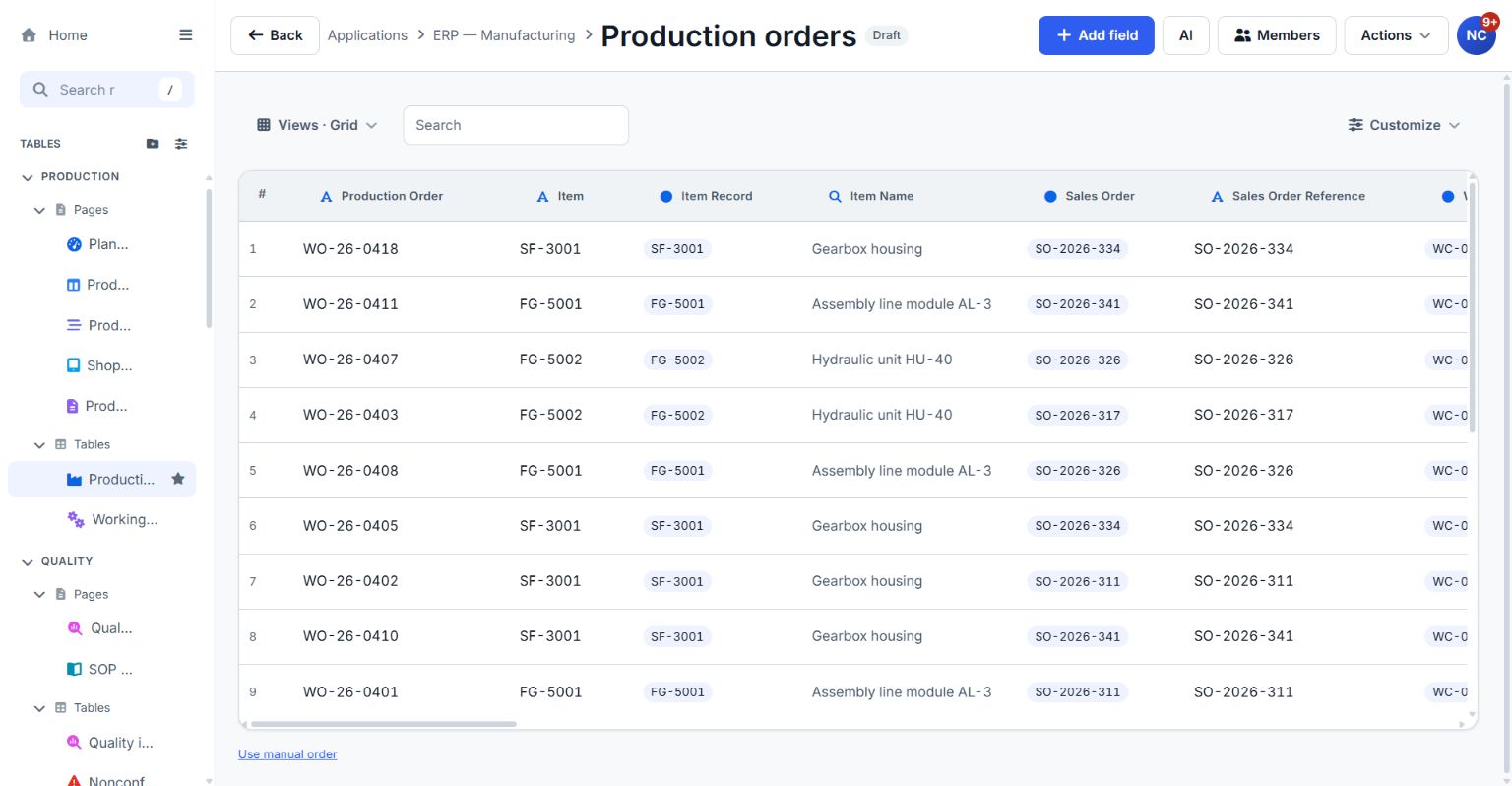
- Open the order book. From Applications, open ERP — Manufacturing, then Production orders. The grid includes Production Order, Item, Item Record, Item Name, Sales Order and Sales Order Reference. The linked fields connect an order to its item and sales order.
- Find one order. Use the table's Search box to find an order you want to inspect. In the sample data, WO-26-0411 is a useful example. Start with a single record so you can follow its details across views.
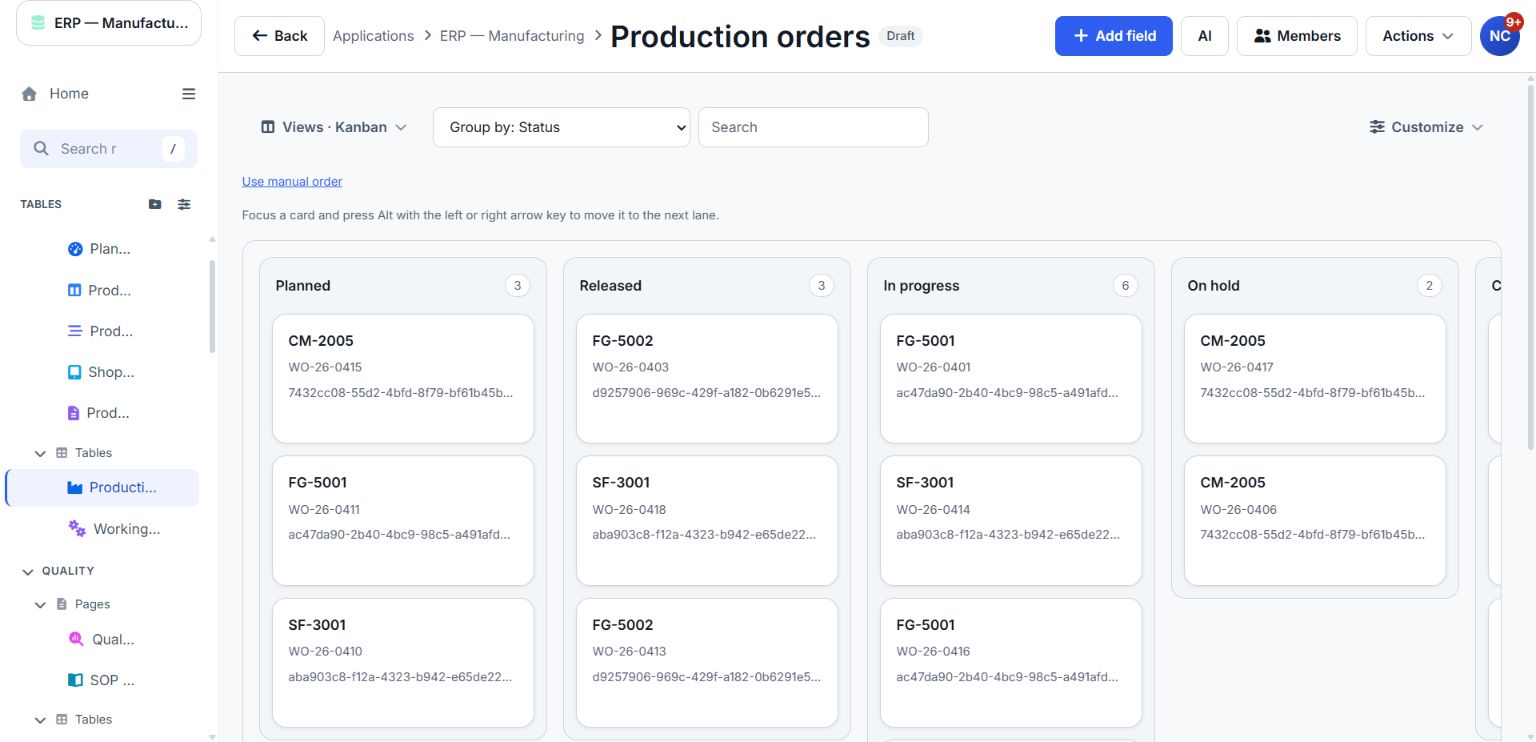
- Review status as a board. Open Views · Grid, then choose Kanban. Set Group by: Status. The sample board has lanes such as Planned, Released, In progress and On hold. Review the held orders and agree who should investigate each one.
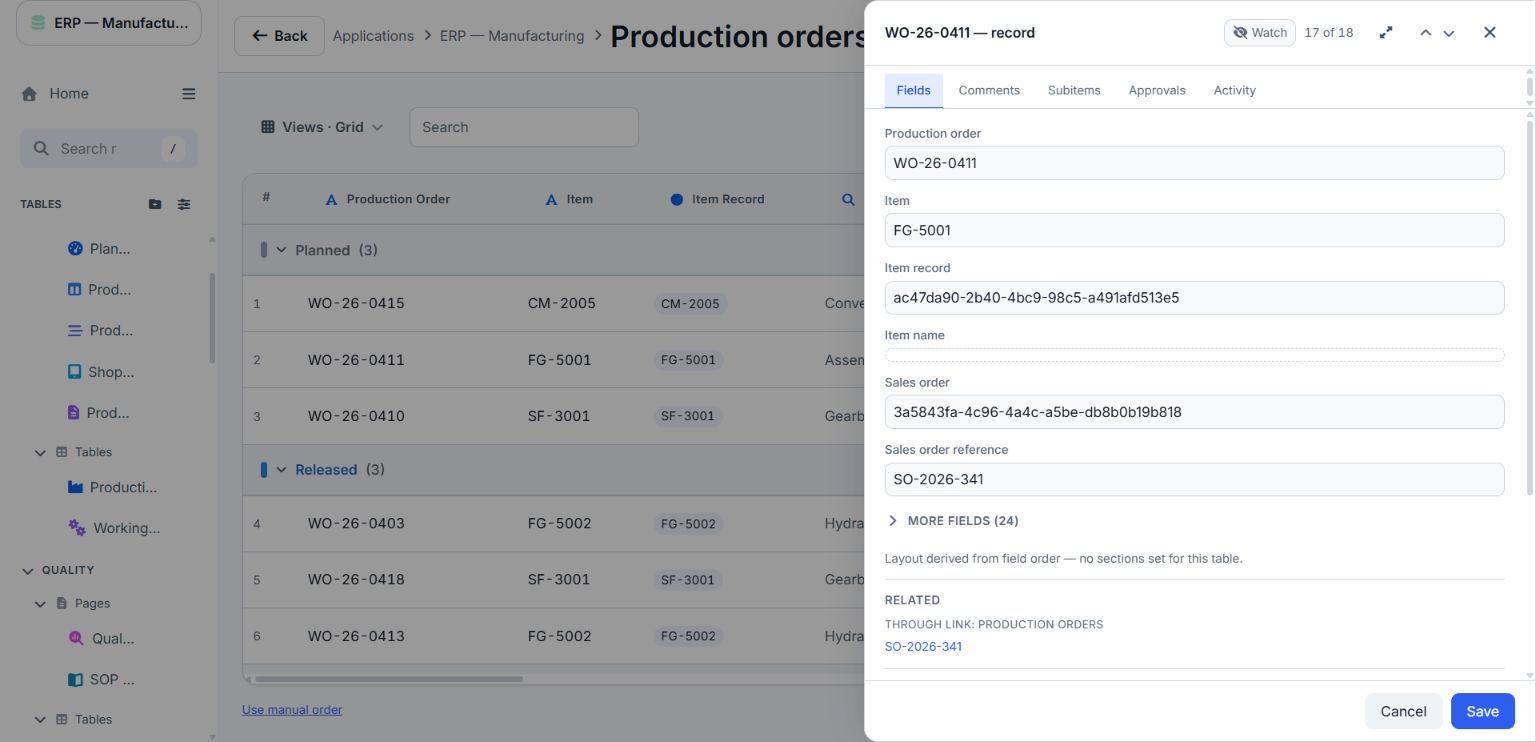
- Inspect the underlying record. Click an order card to open its record panel. The Fields tab shows the order's details. Expand MORE FIELDS to reach fields such as Status, Supervisor, Quantity ordered, Quantity produced, Planned start and Planned finish. With permission to edit, update the relevant values and choose Save. Choose Cancel to close without saving.
- Check the relationship. In the record panel, inspect Sales order reference and the RELATED section. The sample order links to SO-2026-341. Use that relationship to connect production work to the customer order it serves.
- Return to the daily review. Close the record panel and review the board again. Grid and Kanban display the same underlying records. Agree what each status means, who updates it and when the team reviews it.
Begin with one production workflow and adapt the template's fields to your process. Sample order numbers, dates and quantities are examples, not operating instructions for your plant.